ShellGPT brings ChatGPT directly into the Linux terminal, enabling developers to run natural language queries, generate code, and execute shell commands from the command line.
Using virtual environments (venv) prevents dependency conflicts when installing ShellGPT, following best practices for Python package management on Linux.
ShellGPT's --shell flag generates ready-to-run Linux commands from plain English descriptions, lowering the barrier for users less familiar with CLI syntax.
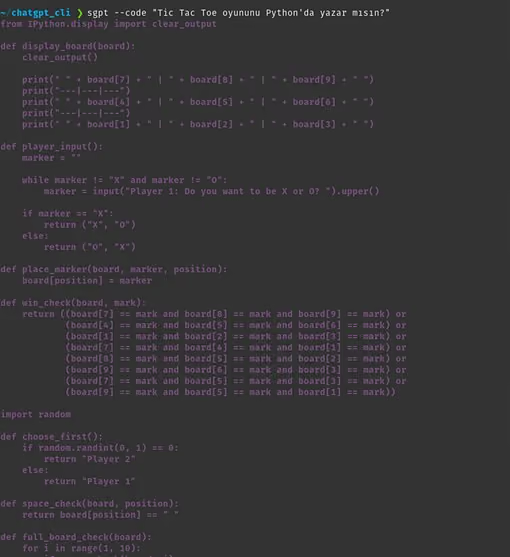
The --code flag lets developers generate working code snippets (e.g., Tic Tac Toe in Python) directly from the terminal without switching tools.
Combining --shell and --execute flags allows immediate execution of AI-generated shell commands, turning ChatGPT into an interactive Linux automation assistant.
ChatGPT has revolutionized the way people interact with technology. It has brought about a new era of personalized and natural language communication, making it easier for individuals to access information, get things done, and connect with others. From customer service chatbots to language learning apps, ChatGPT has enabled more seamless and efficient communication, creating a more convenient and connected world for people everywhere.
Pre-requisites
You would require a linux machine or a Virtual Instance. In case you do not have any, please sign up with some cloud provider like AWS, GCP or any other of your choice and get it up and running.
Python and the Python PIP to start with the process.
So, first, use the following command to determine the Python version installed on your Linux PC:
In case you are not able to find python3 (usually it is installed by default with most systems when got it from cloud providers), then install python3 with the command: sudo apt install python3 -y
Install Pip Package Manager
Pip is a Python package manager that works across platforms. It aids in the management of the various Python packages and libraries required to bring ChatGPT to Linux. With a single command, you can install, upgrade, and uninstall the required packages. It generally comes preinstalled with Python in most Linux distributions, but if it is not installed, you can install it with this command: sudo apt install python3-pip -y
Once installed you can check the Pip version installed in Linux with the following command: pip --version
Install Venv Module
This module is not required for ShellGPT or ChatGPT, but it is recommended that you install it in order to create an isolated virtual environment in Linux and avoid conflicts with other libraries. When you install a library or package, many background dependencies are installed, which can interfere with other libraries. To create a virtual environment for a project, you need the “venv” module, which can be installed using the this command: sudo apt install python3-venv
Let us create a folder and then use that folder as a path to venv
mkdir chatgpt cd chatgpt
Now, use the command below to create a virtual environment with the venv module. We have used the “chatgpt_cli” name for our virtual environment.
The virtual environment you just created will be deactivated by default. To activate the environment, use this command: source chatgpt_cli/bin/activate
Once you execute the above command, the shell prompt will now display the name of the virtual environment in brackets, like this:
()@
Get Your OpenAI API Key
In order to use ChatGPT’s services in Linux, you will need an OpenAI API key. Currently, OpenAI is offering $5 credits for trial use. Once you exhaust the credits, you need to pay for access to the API. That said, here’s how you can get an OpenAI API key for this command line ChatGPT chatbot:
Navigate to OpenAI’s website (visit) and create a new OpenAI account. If you already have an account, simply log in and move to the next step.
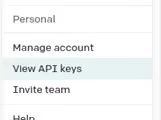
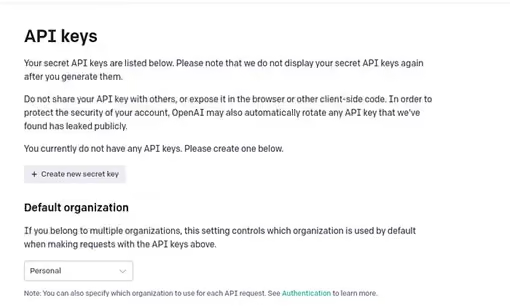
Next, click on your profile image at the top right corner and select “View API keys” from the drop-down menu.
Here, you will see all the previously generated API Keys if any. To generate a new API key, click the “Create new secret key” button.
Now, create an environment variable for this API key with this command: export OPENAIAPIKEY="GeneratedAPIKey"
In Linux, you can create an environment variable using the “export” command.
Replace placeholder with the actual API key you generated to use ChatGPT in the Linux terminal.
Verify the environment variable by listing it with the env command:
This variable is only temporarily stored for the current session. To store the API key permanently, open the .bashrc file in the text editor of your choice and add the variable at the end of the file.
Install ShellGPT to Use ChatGPT
Having finished setting up the environment, you can now proceed to install the command line version of ChatGPT in Linux. You need to omit the –user flag if you are installing it in a virtual environment. Now, use this command to install ShellGPT on your PC: pip3 install shell-gpt
ShellGPT: Syntax & Options
Now that you have installed ShellGPT, you must be eager to use it for various tasks. But before that, let’s check out the syntax and some options that we can use to make our outputs interesting. Using ShellGPT for multiple tasks is easy, thanks to its straightforward syntax:
How to Set up and Use ChatGPT in Linux Terminal
1.Use ShellGPT for Queries
You can use ShellGPT as a search engine for any sort of query. Since it is an AI chatbot, you get results with more human-like answers and not a series of ranked web pages like most search engines. The syntax to use ShellGPT to get answers to your questions is: sgpt
In the example below, we have requested detailed information about the Mona Lisa painting.
2. ChatGPT Chatbot Mode
Command: sgpt --chat "Input_prompt"
3. Generate Code
You can even use the CLI-based ChatGPT tool to solve coding problems or generate code snippets. Simply use the --code flag to generate code for your prompt, as shown here: sgpt --code "Can you write Tic Tac Toe in Python?"
4. Generate Shell Commands
While the Terminal can be a powerful tool to execute complex commands and automate tasks, it can sometimes be difficult for novice users to remember the syntax and options of various Linux commands. With ChatGPT in your command line, you can not only get the syntax of a Linux command but also get the exact command with the parameters and options required. Simply use the --shell flag as: sgpt --shell "make all files in current directory read-only"
Furthermore, if you use the --execute and the --shell flag together, you can even execute the shell command generated directly. As for the above example, here’s what the syntax looks like: sgpt --shell --execute "make all files in current directory read-only"
So, ShellGPT integrates the power of ChatGPT into your Linux terminal.
Share
More blogs from SESTEK
Understanding Generative AI: The Possibilities and the Pitfalls
In this article, we'll dive into large language models, exploring their key advantages, potential issues that might arise when relying solely on them for customer service, and practical solutions to maximize their effectiveness.
SESTEK President Serdar Karadayı explains why AI's real battleground is now experience, not intelligence, and how 25 years in speech technology led to voices so natural that users mistake them for real people.
The acquisition provides Unifonic with immediate access to Sestek’s suite of cutting-edge “Conversational AI and Analytics” solutions and a strong base of existing clients and partners.
Agentic AI: Works in Demo, Can it Survive in Production?
SESTEK Lead Product Owner Mert Çıkan shares why AI agents that look flawless in demos fail in production, and how SESTEK overcomes these barriers with hybrid autonomy.
The Reasoning Era of Conversational AI: From Understanding to Action
SESTEK Project Manager Rami Izhiman explores how Conversational AI is moving beyond speech recognition and predefined scenarios toward reasoning, contextual understanding, and decision-making.
Explore why secure enterprise AI projects require more than standard testing, and see how SESTEK helps organizations reduce deployment risks while securing sensitive customer data at scale.
The Rise of AI-Powered Virtual Agents in E-Commerce
Discover how AI-powered virtual agents transform e-commerce customer experience and operations while exploring how SESTEK's Knovvu Virtual Agent enables leading retailers to deliver fast, personalized, 24/7 support at scale.
Unifying Customer Engagement with Conversational AI
Discover how SESTEK's Conversational AI eliminates fragmented customer experiences by connecting every channel—voice, real-time chat, messaging, and more—into one seamless, intelligent customer journey.



.avif)

.avif)
.avif)

















.avif)